Tutorial
Automated sleep analysis at your fingertips. We walk you through some examples in our tutorial.
SomnoBot uses well-validated deep neural networks that run directly in your web browser to analyze human sleep. No data are transferred to a server or other third party. The neural networks have been published and are open access.
On the Sleep Analysis page you can currently choose between three tasks:
- Sleep Staging: 30-s staging with RobustSleepNet (see here for details)
- High-frequency Sleep Staging: 30-s staging or higher time-resolution staging using AnySleep (see here)
- Spindle Detection: spindle detection and characterization with RobustSleepNet and SUMOv2 (see here)
Tutorial
In this tutorial, we show you how to use SomnoBot to stage human sleep at 30-s or higher resolution, how to detect sleep spindles, and how to use the exported sleep stage scores to calculate sleep statistics.
First, open the Sleep Analysis webpage and click "Start Sleep Staging", "Spindle Detection", or "High-frequency Sleep Staging" on the task selection screen.
Optional: Use SomnoBot in Offline Mode
All computations already run locally in your browser, but you can additionally preload SomnoBot for offline use and then disconnect from the internet for maximum privacy.
-
While you are online, click the "Offline mode" button in the top‑right corner of the page.
-
In the dialog that opens, click "Preload for Offline Use".
-
Once all required files and models have been cached in your browser, you should see the following message:
"Website ready for offline use. You can now disable internet for maximum privacy." -
You can now disable your internet connection and continue to use SomnoBot (including sleep staging) completely offline. If you later clear your browser data or cache, you may need to repeat the Offline mode preloading step.
Step 1: Select Recordings
-
Click "Select EDF file(s)" and choose one or several EEG sleep recordings from your computer that you want SomnoBot to stage (see figure 1).
- If you do not have an appropriate file at hand, you can download a recording from a public data repository, for instance this file from the SleepEDF dataset.
- We currently support files in EDF format only. SomnoBot automatically stages human sleep from scalp EEG recordings acquired with the 10-20 system recommended by the American Academy of Sleep Medicine (AASM). For AnySleep's high-frequency staging, also high-density EEG montages are supported. Animal sleep and intracranial recordings are not yet supported.
- Your EDF files never leave your computer and are not shared with us or any third party. Find out more here.
-
Check the checkboxes of those files for which you want SomnoBot to score sleep (see figure 1, step 2).
-
Optional: If you happen to know the lights off and lights on times for your recordings, you can enter them in the last two columns of the table (figure 1, step 3). If in doubt, don't change the prefilled values.
- lights off and lights on determine where SomnoBot starts and ends to score sleep in the recording. The first scored epoch starts with lights off.
- The automatically determined values for lights off and lights on correspond to the start and end times of the recording.
- By entering the actual lights off and on times, you can calculate more sleep statistics in step 5 of this tutorial.
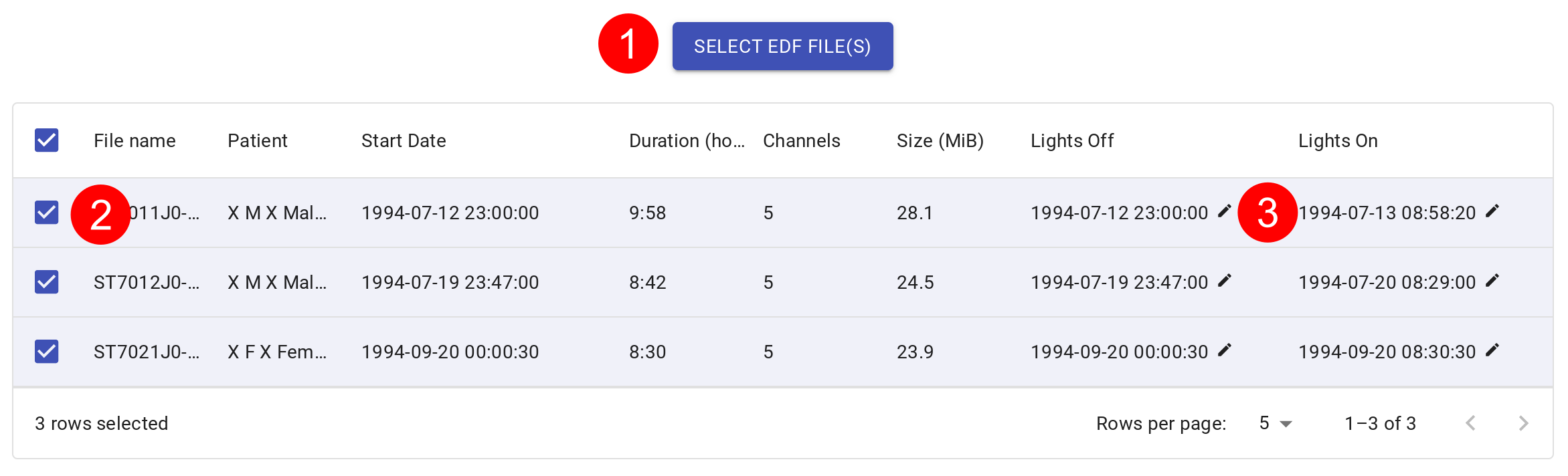
File selection for sample EDF files. Click on (1) to select one or several EDF files from your computer. The table shows details of your files. Click on (2) to select or deselect those files that you want or do not want to score. Optional: If you know "lights off" and "lights on" times, you can enter these at (3). If in doubt, do not change the prefilled values.
Step 2: Select Channels
You need to select channels that SomnoBot will use to detect sleep stages. SomnoBot uses a neural network that is robust with respect to different channels and EEG montages. However, to achieve the best staging accuracy, we recommend selecting at least two EEG and one EOG channel (learn more about channel selection here).
- Open the "Select channels for sleep staging" dropdown and select at least two EEG and one EOG channel (see figure 2).
- The dropdown lists only channels that are present in all selected EDF files. If your EDF files do not share any common channel, the list will be empty.
- The more channels you select, the better SomnoBot can stage your recordings. However, more channels increase compute time and memory requirements. We recommend starting with a small number of channels (e.g., three channels).
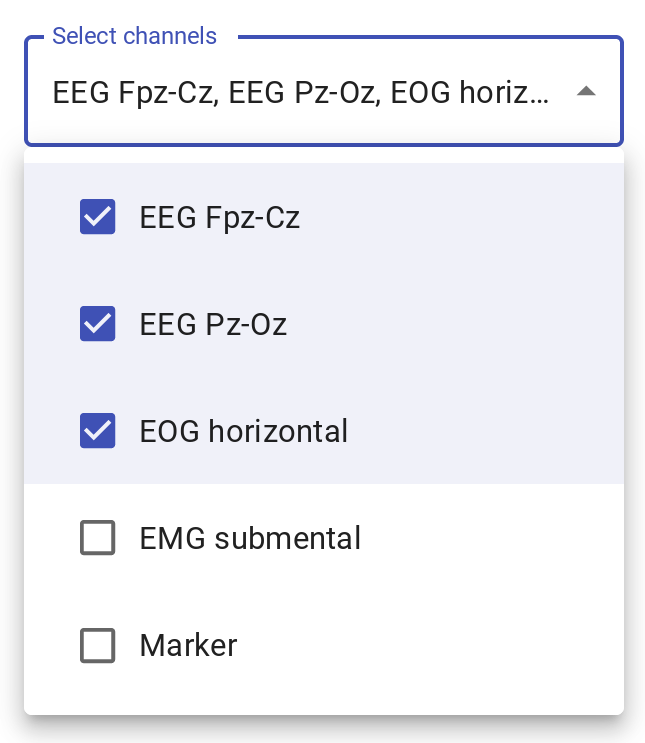
Channel selection for a sample EDF file. The dropdown shows channels that all selected recordings have in common.
Step 3a (only Spindle Detection): Select an Additional Spindle Channel
-
In "Select channel for spindle detection", choose a central EEG channel (e.g., C3-A2 or C4-A1) that is present in all loaded files. This is the channel on which spindles will be detected and characterized.
-
Sleep staging is always performed first. In the Advanced Settings panel you decide in which stages spindles are identified:
-
Open the Advanced Settings.
-
Use the first switch to restrict spindle detection to N2 sleep only (default) or to all stages. Keeping the default is recommended because it matches the setting of the spindle detector in the validation study (see here). If you deactivate the filtering of sleep stages, SomnoBot might detect spindles in unplausible sleep stages (e.g., Wake or REM).
-
Use the second switch to additionally include N3 and selected N1 epochs (latter half of N1 epochs that are followed by N2 or N3), following AASM rules.
-
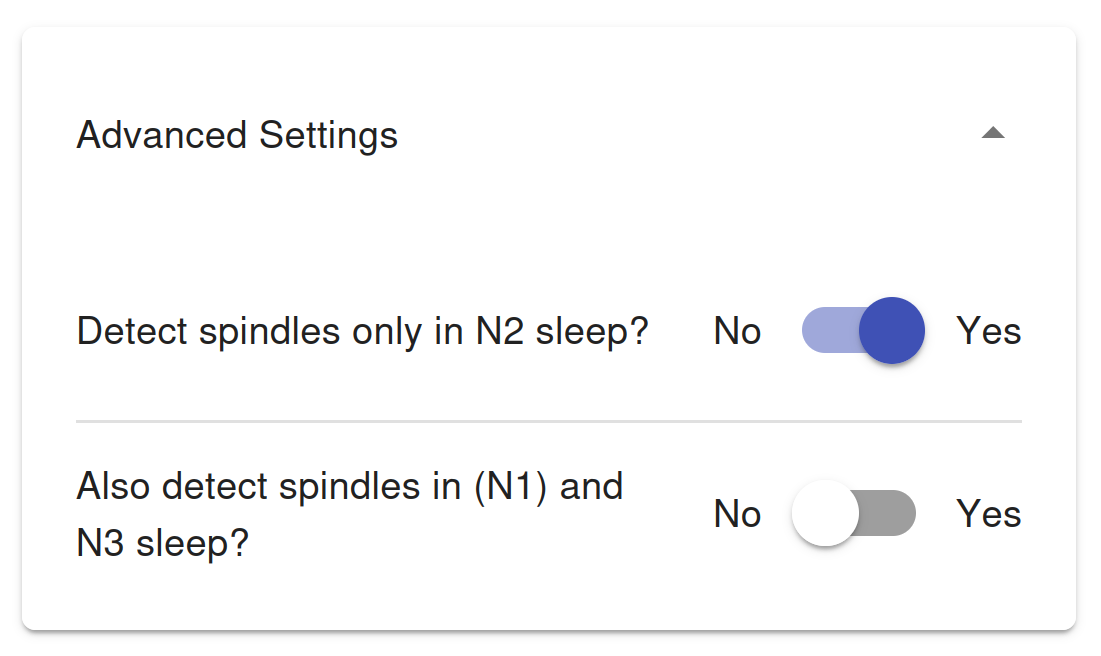
Configuration of spindle filtering. The first switch controls whether spindles are detected solely in N2 sleep or in all sleep stages. With the second switch, you can additionally detect spindles in N3 sleep and in the latter half of N1 epochs that are followed by N2 or N3 sleep.
Step 3b (only high-frequency staging): Select the Sleep Stage Time Resolution
-
Use the "Select sleep stage time resolution" slider to set the desired epoch length.
-
The leftmost position corresponds to the standard 30-s resolution (1 prediction per 30 s).
-
Moving the slider to the right increases the number of predictions per 30‑s window (e.g., 4, 16, ... predictions / 30 s), i.e. reduces the effective epoch length to a few seconds or even below 1 s. Shorter epochs provide more fine‑grained hypnograms but also increase memory requirements and may introduce noise.
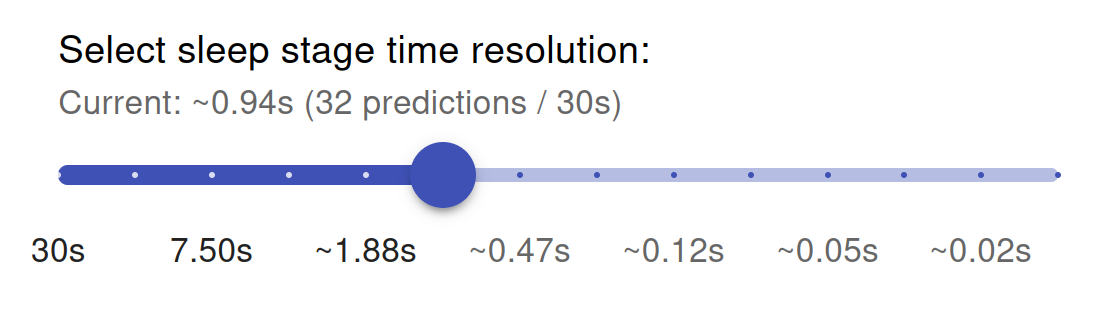
Selection of Sleep Staging time resolution. Moving the slider to the right increases the number of predictions per 30-s epoch and, correspondingly, decreases the time resolution that one prediction covers.
Step 4: Run the Analysis and Download Annotations & Meta Data
-
Click on "Start Annotation Process".
-
After the analysis finishes, click "Download Annotations" and "Download Metadata" to save:
- the hypnogram (time series of sleep stages at the selected time resolution (30 s or higher for high-frequency staging)),
- metadata describing the analysis process (useful for publications or theses), and
- if spindle detection was selected: spindle annotations, including spindle timing and characteristics
- Note: SomnoBot will assign sleep stages even in segments with strong artifacts or flat lines (e.g., when electrodes were disconnected). This is expected behavior. Artifact detection is planned for a future version of SomnoBot.
-
Inspect and, if desired, download hypnograms for individual recordings.
- If you analyzed several EDF files, use the "Select file for hypnogram" dropdown to switch between them.
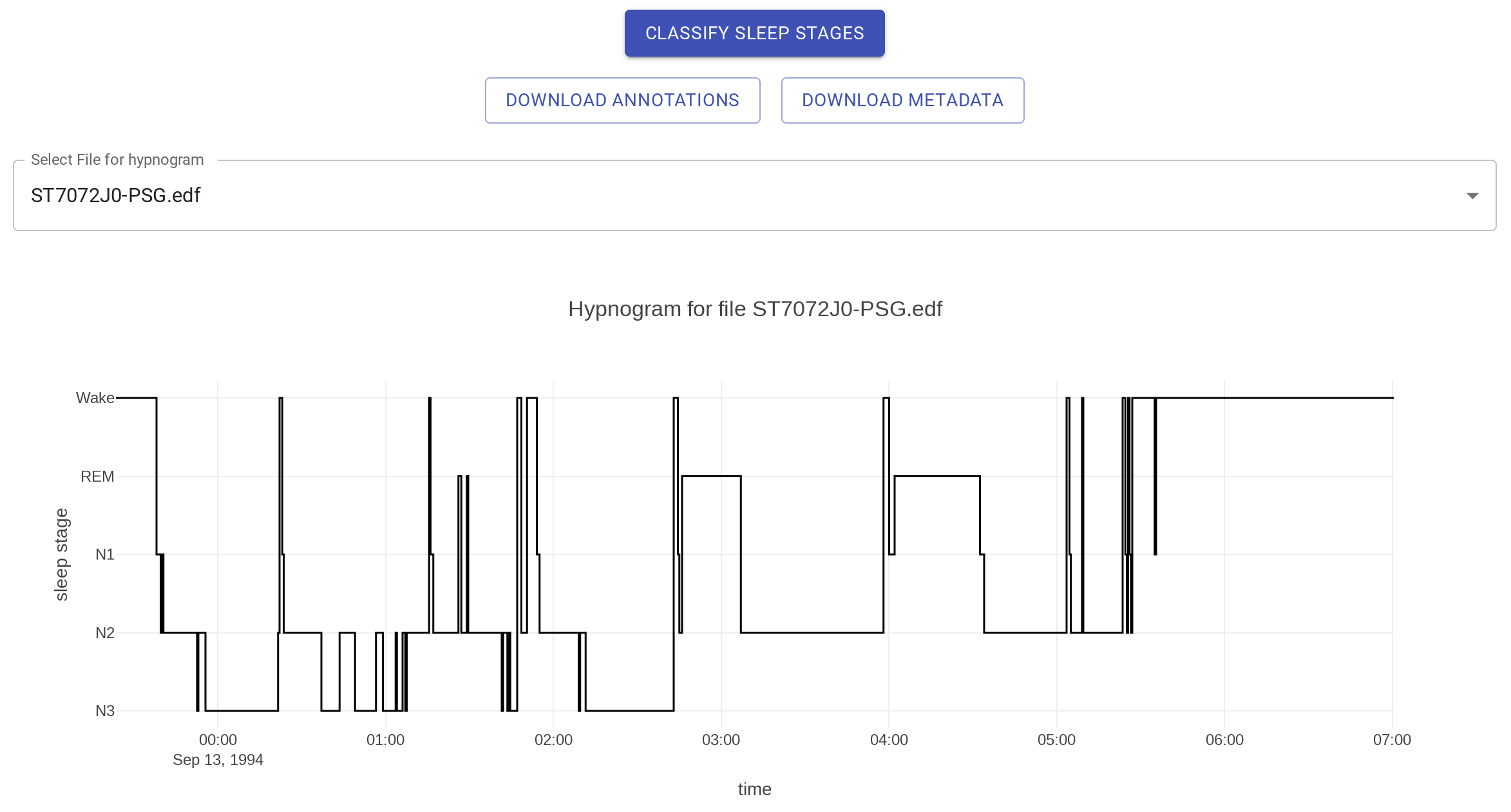
Hypnogram and download panel. After the analysis you can visualize hypnograms and download annotations and metadata.
Step 5: Calculate Sleep Statistics
Sleep statistics and other metrics can be calculated using your favorite tools. Here we demonstrate how to calculate sleep statistics based on 30-s sleep stages using a spreadsheet.
-
Open the archive you downloaded in the previous step.
-
Unzip the archive to extract the
.txtfile containing the sleep scores. -
Each line of the
.txtfile corresponds to one 30-second epoch of the EEG recording. -
The first column contains the time point (in seconds) at which the epoch begins. Second 0 corresponds to the beginning of the analyzed segment, which is currently the start of the EDF recording.
-
The second column contains the sleep scores. Both columns are separated by commas. Sleep scores are encoded as:
-
| Sleep Score | Corresponding Sleep Stage |
|---|---|
| 0 | Wake |
| 5 | REM |
| 1 | N1 |
| 2 | N2 |
| 3 | N3 |
-
Open and copy the spreadsheet we created for you here.
- Use the file menu to download the sheet or create an editable copy.
-
Copy the sleep scores from the annotation file into the sheet column titled "Sleep Data 01".
- Tip: Open the
.txtfile in a spreadsheet application and copy the second column directly.
- Tip: Open the
-
Read the sleep statistics that are automatically calculated by the sheet.
Step 6 (optional): Assess Scoring Accuracy
SomnoBot uses validated and published neural networks to stage human sleep with high accuracy. If you want to compare SomnoBot's scores with those of a human expert, you can follow this protocol:
-
Read about the scoring accuracy of human experts and automated systems here.
-
Select one or several of your sleep recordings and have them scored manually by you or another expert.
-
Use SomnoBot to determine sleep scores for the same recordings as described in step 4.
-
Determine Cohen's Kappa between SomnoBot's scores and the manual scores. We provide a spreadsheet that can help you calculate Cohen's Kappa.
-
Compare your Kappa value with the distribution of Kappa values obtained between pairs of expert scorers.
- This comparison lets you assess how close the agreement between you and SomnoBot is to the typical agreement between human experts.